
Google Just Made Reviews Anonymous — Good or Bad for Law Firms?

If you’re a lawyer trying to get more Google reviews, there’s a recent change from Google that could actually help your law firm — but most attorneys have no idea it exists.

Google now allows people to leave reviews using nicknames and generic profile images instead of their real names and photos.

Technically, Google still knows who the reviewer is on the backend. But publicly, the reviewer’s identity can be hidden.

That one small change could have a big impact on law firms.

Especially if you practice in areas like:

  • Divorce
  • Criminal defense
  • Bankruptcy
  • Estate planning
  • Employment disputes
  • Personal injury

In this article, we’ll explain what changed, why it matters, the potential risks, and how your firm can use this change to generate more reviews and attract more clients online.

What Changed: Google Now Allows More Anonymous Reviews

For years, one of the biggest barriers to getting Google reviews for law firms was privacy.

Clients were often happy with their attorney. But they didn’t want the entire internet knowing they hired one.

Now, Google has introduced more flexibility in how reviewer identities appear publicly.

This means someone can leave a review while displaying:

  • A nickname instead of their real name
  • A generic or cartoon-style profile image
  • Limited personal information visible to the public

Google still requires a real Google account behind the scenes. But to the public, the reviewer can appear more anonymous.

For law firms, this change removes a psychological barrier that has prevented many satisfied clients from leaving reviews.

Why This Matters for Law Firms

Legal services often involve sensitive situations.

Even when a client has a great experience with their lawyer, they may not want their name publicly tied to the case.

Think about common practice areas.

Clients may hesitate to publicly admit they hired an attorney for:

  • Divorce or custody disputes
  • Bankruptcy filings
  • Criminal defense cases
  • Employment disputes with a former employer
  • Personal injury accidents

Even if the case had a positive outcome, privacy can still matter.

Before this change, leaving a Google review meant that the client’s real name and profile photo would appear publicly next to the review.

For many clients, that was enough to stop them from leaving feedback.

Now they can write something like:

“Excellent attorney. Explained everything clearly and got a great result.”

And the reviewer name might simply appear as:

“Happy Client” or “Pittsburgh Client.”

For many people, that level of privacy makes them far more comfortable leaving a review.

Opportunity #1: More Clients May Be Willing to Leave Reviews

The biggest benefit of this change is simple.

More clients may be willing to leave reviews.

Even a small increase can make a meaningful difference for your law firm.

Let’s look at a realistic example.

Imagine your firm handles about 150 clients per year.

If this new privacy option encourages just 5% more clients to leave reviews, that could mean:

  • 7–8 additional Google reviews each year

Over time, that adds up.

More reviews create stronger social proof and make your firm appear more trustworthy to potential clients researching lawyers online.

Many people choose a lawyer based heavily on reviews.

When someone searches for an attorney in your city, they often compare several firms at once.

And one of the first things they look at is:

  • How many reviews a firm has
  • What the rating is
  • Whether the reviews appear recent

More positive reviews can significantly influence that decision.

Opportunity #2: Reviews Are a Major Local SEO Ranking Factor

Google reviews don’t just influence potential clients.

They also influence where your law firm appears in search results.

When someone searches for terms like:

  • “Divorce lawyer near me”
  • “Criminal defense attorney in Pittsburgh”
  • “Estate planning lawyer in [city]”

Google’s local search algorithm looks at several factors.

Reviews play a major role.

In particular, Google considers:

  • Number of reviews
  • Recency of reviews
  • Average rating
  • Review velocity (how frequently reviews are posted)

In simple terms, law firms that consistently receive reviews often appear higher in local search results.

This is one reason why review collection is such an important part of modern law firm marketing.

Studies consistently show that around 87% of consumers read online reviews before hiring a local service provider.

For many potential clients, reviews are the first impression of your firm.

The Potential Downside of Anonymous Reviews

While this change creates new opportunities, there are also a few potential risks.

When reviews feel more anonymous, some people may feel more comfortable leaving negative feedback.

And in rare cases, competitors could attempt to leave fake reviews using nicknames.

However, there are some important protections in place.

Google still requires reviewers to:

  • Use a real Google account
  • Follow Google’s review policies

Google also uses automated systems to detect spam or suspicious review patterns.

If a review violates Google’s policies, it can often be flagged and removed.

In practice, the biggest issue for most law firms is not negative reviews.

It’s simply the lack of reviews overall.

The Real Problem Most Law Firms Have with Reviews

In our experience working with law firms, the biggest challenge isn’t bad reviews.

It’s that many firms never ask for reviews at all.

Here’s a common scenario.

A client finishes their case.

They are happy with the outcome.

They thank the attorney and move on.

And the firm immediately shifts focus to the next matter.

No one asks the client to leave a review.

As a result, those positive experiences never appear online.

Meanwhile, another firm in town might actively request reviews from every client.

Even if the quality of service is similar, the firm that collects reviews consistently will look stronger online.

When potential clients search for an attorney, they often choose the firm that appears:

  • More established
  • More trusted
  • More highly reviewed

That’s why consistent review collection matters so much.

Why Many Law Firms Are Automating Review Requests

One reason firms fail to collect reviews consistently is simple.

People get busy.

Attorneys are focused on cases. Staff members are juggling multiple responsibilities.

Remembering to ask every satisfied client for a review can easily fall through the cracks.

This is why many law firms now automate their review requests.

The process is simple.

When a matter closes, the system automatically sends the client a short message asking for feedback.

For example:

  • A short email
  • A text message
  • A follow-up message with a review link

If the client had a positive experience, they can easily click the link and leave a review.

Automation removes the need for someone in the office to remember to ask each time.

It also creates consistent review velocity, which Google’s algorithm likes to see.

How Law Firms Can Take Advantage of This Change

If you want to benefit from Google’s new review privacy options, the key is consistency.

Here are a few practical steps your firm can take.

1. Start Asking for Reviews Consistently

The simplest strategy is to make review requests part of your case closing process.

When a matter concludes successfully, ask the client if they would be willing to share their experience.

Even a simple request can make a big difference.

2. Make It Easy for Clients

Never ask clients to “search for your firm and leave a review.”

Instead, provide a direct review link.

This allows them to leave a review in just a few clicks.

3. Mention the Privacy Option

Because many clients worry about privacy, you can reassure them that Google allows reviewers to use:

  • Nicknames
  • Generic profile images

That small detail may encourage more people to participate.

4. Monitor Reviews Regularly

Make it a habit to check your Google reviews regularly.

Respond professionally to both positive and negative feedback.

A thoughtful response shows potential clients that your firm is engaged and professional.

The Law Firms With the Most Strong Reviews Usually Win

When someone is searching for a lawyer online, they typically see several options.

Most people quickly compare the firms that appear in Google’s local results.

They often look at:

  • Star ratings
  • Number of reviews
  • Recency of reviews
  • What past clients say about the firm

If one law firm has 80 reviews and another has 12, the choice often feels obvious.

The firm with stronger reviews tends to build trust faster.

That trust often leads to more phone calls and consultation requests.

This is why review generation is such an important part of modern law firm marketing.

Final Thoughts: Anonymous Reviews Could Be a Big Opportunity

Google’s new review privacy options may seem like a small change.

But for law firms, it could make a meaningful difference.

Many satisfied clients simply want privacy when sharing their experience with a lawyer.

Allowing nicknames and generic profiles removes that barrier.

However, the firms that benefit the most will still be the ones that ask consistently.

If your firm has a simple system in place to request reviews after successful cases, even a small increase in participation can dramatically improve your online presence over time.

Because at the end of the day, the lawyers with the most strong reviews often win the trust of new clients first.


How to Use YouTube to Bring in Law Firm Leads

If you’re a lawyer and you’re not using YouTube to bring in leads, you’re missing out on clients who are literally searching for answers to legal questions every single day. In this post, we’ll show you how to get those leads coming to you—just by posting one video a week.

Why YouTube Works for Law Firms

YouTube is the second largest search engine after Google. And because Google owns YouTube, your video can show up in both search engines.

Think about it: people are typing questions like:

  • “Can I sue for defamation?”

  • “What does a DUI lawyer do?”

You can answer these questions in a short 3–5 minute video, build trust, and convince potential clients to reach out to you.

Step-by-Step: How to Turn a Weekly Video Into Leads

1. Answer a Specific Legal Question

Don’t talk generally about your firm—be specific. Ask: What is one question my ideal client is searching for?

Examples:

  • “Can I get a DUI on a bike?”

  • “How long does probate take in Pennsylvania?”

These niche questions attract people actively looking for legal help.

2. Use a Searchable, Plain-Language Title

Avoid legal jargon. Think like your client, not like a lawyer.

Instead of: “Understanding Defamation in Social Media Contexts”
Use: “Can I Be Sued for a Facebook Post?”

3. Create an Eye-Catching Thumbnail

Your thumbnail is the first impression. Make it count. Use a photo of yourself looking confident or concerned (depending on the topic), and add 4–6 bold, readable words.
4. Write a Smart YouTube Description

Include:

  • A link to your website or calendar
  • A link to your free guide or checklist
  • A short summary of the video
  • Your firm’s contact info


5. Include a Strong Call-to-Action (CTA)

Always end your video with a CTA:

  • “Click the link to schedule a consultation.”
  • “Download our free DUI defense checklist.”
  • “Subscribe for more legal tips every week.”

Multiply Your Reach With Repurposing

Once your video is live, don’t just post and forget it. Here’s how to maximize its value:

  • Turn it into a Blog Post

Use a tool like Otter.ai to transcribe the video. Add a quick intro and conclusion, and embed the video at the top.

  • Chop it Into a Short Video

Clip the best 30–60 seconds for YouTube Shorts, Instagram Reels, and Facebook Reels.

  • Add It to Your Google Business Profile

Post the video under the “Updates” section. Google loves active, weekly content.

  • Run It as a Retargeting Ad

Use it in YouTube Ads or Meta Ads to reach people who visited your website or watched previous videos.

  • Embed in Landing Pages + Emails

Add the video to your lead magnet landing page and your welcome email sequence.

  • Share on Social Media

Use Canva AI to turn video excerpts into LinkedIn and Facebook posts.

Finally...

This isn’t about becoming a YouTuber. It’s about using video to:

  • Build trust


  • Answer real client questions


  • Generate leads consistently


With just one video a week, you can fill your marketing calendar and bring in leads and referrals—on autopilot.

Want to Make This Even Easier?

Download the YouTube Video Checklist for Law Firms. It walks you through exactly what to include—before and after you publish.
And if you’d like us to do the whole thing for you—including SEO, repurposing, and ads—book a free consultation with our team!

Step-by-Step Guide: How to Create/Add a Contact Form in GoHighLevel And How To Add Email Automations (Part 1)

When someone submits a form on your site, do you want your website to work for you by contacting that person via automations? 

If so you are in the right place. In this article, we’re going to cover:

  • how to create a contact form in GoHighLevel
  • how to add that form to your website
  • how to add a set of email automations that contacts that prospect for you with helpful info about your company. 

And don’t worry if your website is not in GoHighLevel …

We will cover how to add a contact form to a GoHighLevel site and to a non-GoHighLevel site.

Creating forms and setting up email automations in GoHighLevel can significantly enhance your marketing efforts. This guide will walk you through the entire process, making it easy for you to embed forms on your website and automate your email responses.

Let’s get started! 

Step 1 – Creating A Form In GoHighLevel

The most common form on a website is one where a prospect actually fills out their contact info, and then you get in touch with them. So, that’s the example we’re going to use and create today. 

To get started, you’ll need to create a form.

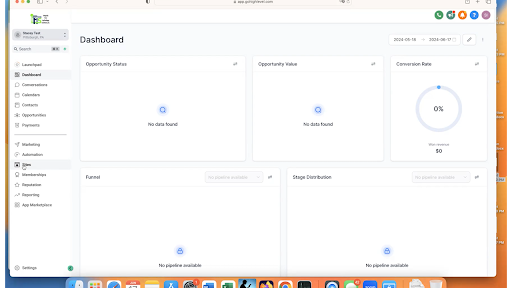
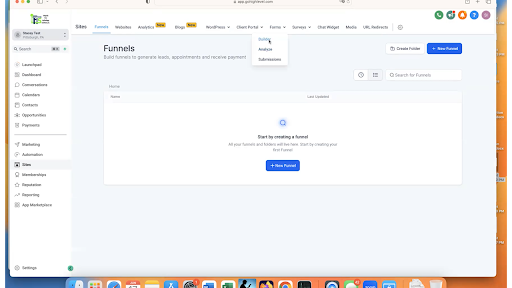
So, log in to GoHighLevel and click on “Sites” in the left main menu.

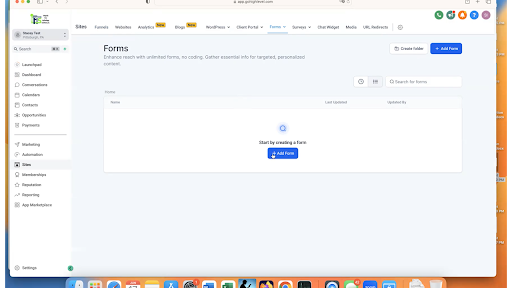
Then, in the top menu, click on Forms > Builder.

Click on “Create New Form.”

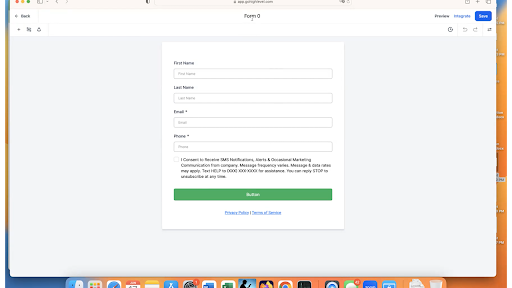
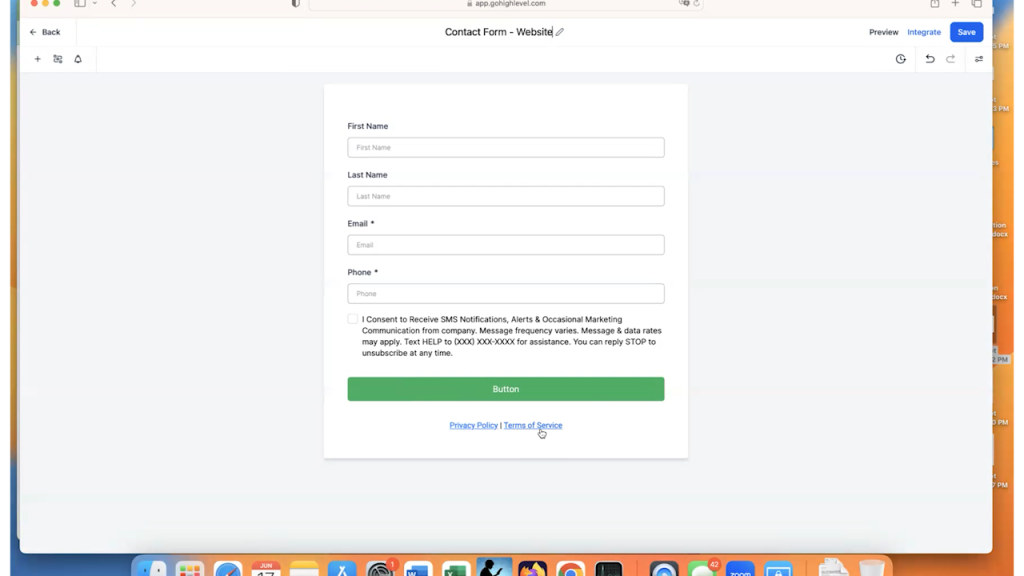
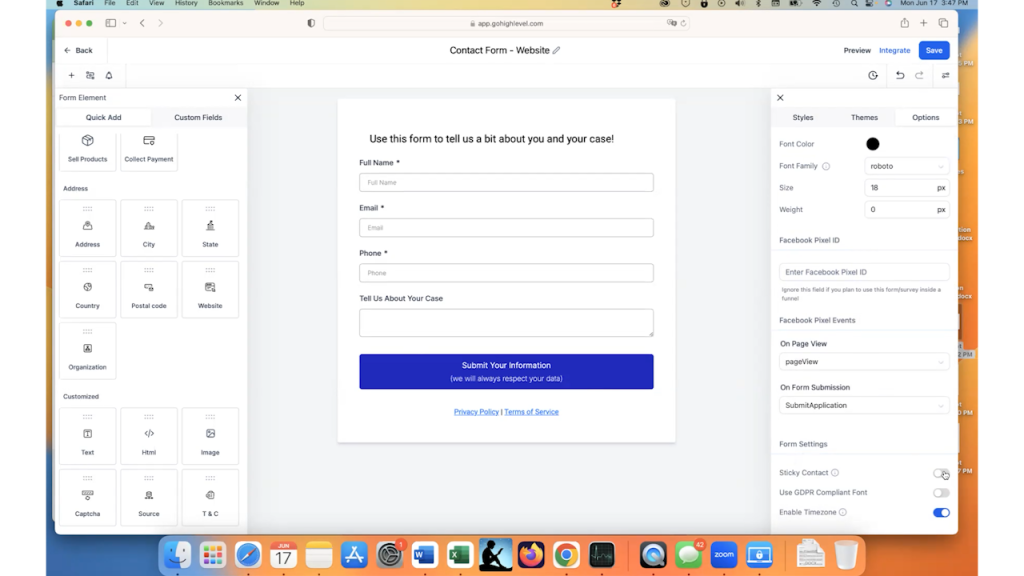
You can see GoHighLevel gives us a starting point with this generic form.

First things first, let’s name the form. You can see it’s currently named “Form 0” at the very top. 

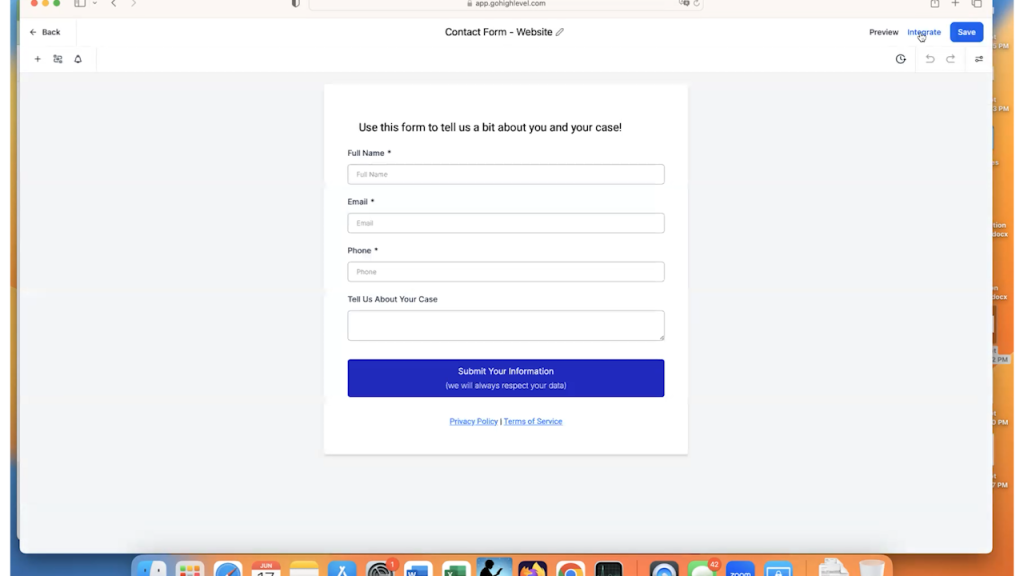
For this example, this form is going to be on my contact page of a sample law firm site. So, I’m going to call the form “Contact Form – Website.”

Now, you may choose to use the default fields that GoHighLevel gives you or you can personalize them.

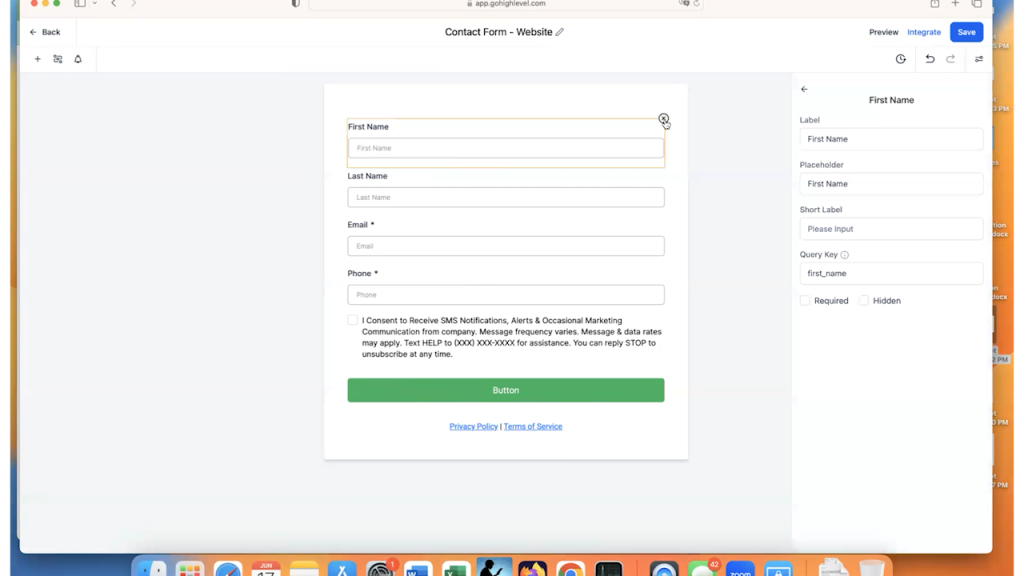
In this case, we are going to personalize them. You have a better chance of someone filling out a shorter form.  So, we are going to delete the “First Name” and “Last Name” fields by hovering over them and clicking the “x.”

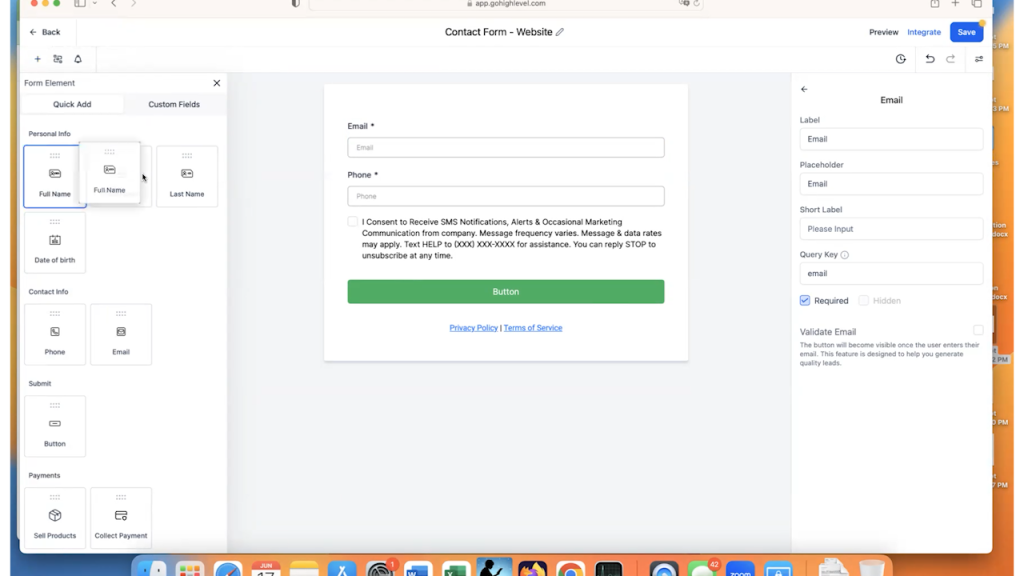
Then, we will add the “Full Name” field instead.  

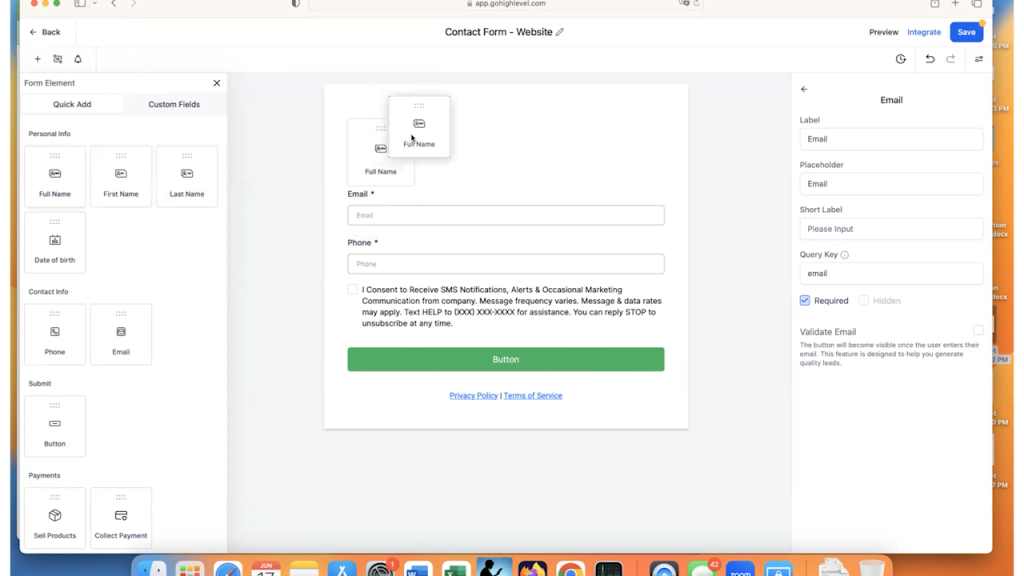
To do this, click on the “Add Form Element” button.  It is the plus sign at the top left of the screen.

Then, select “Full Name” and drag it on to the form at the top.

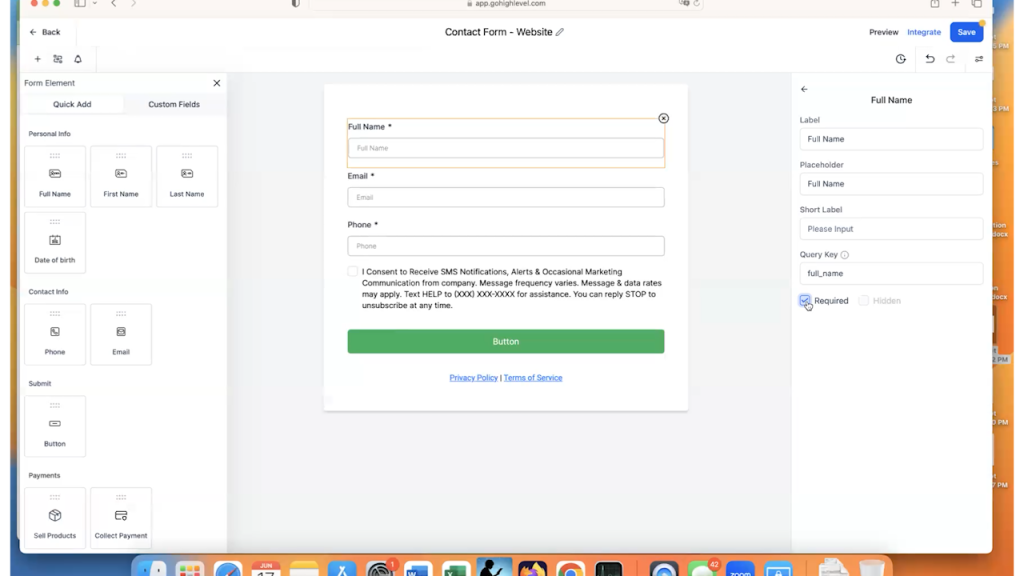
Now, your prospect has to enter their full name, their email, and their phone number. 

The Asterisk next to the field name means that it is a required field. So if you want people to enter the field, be sure that you have “Required” checked on the right.

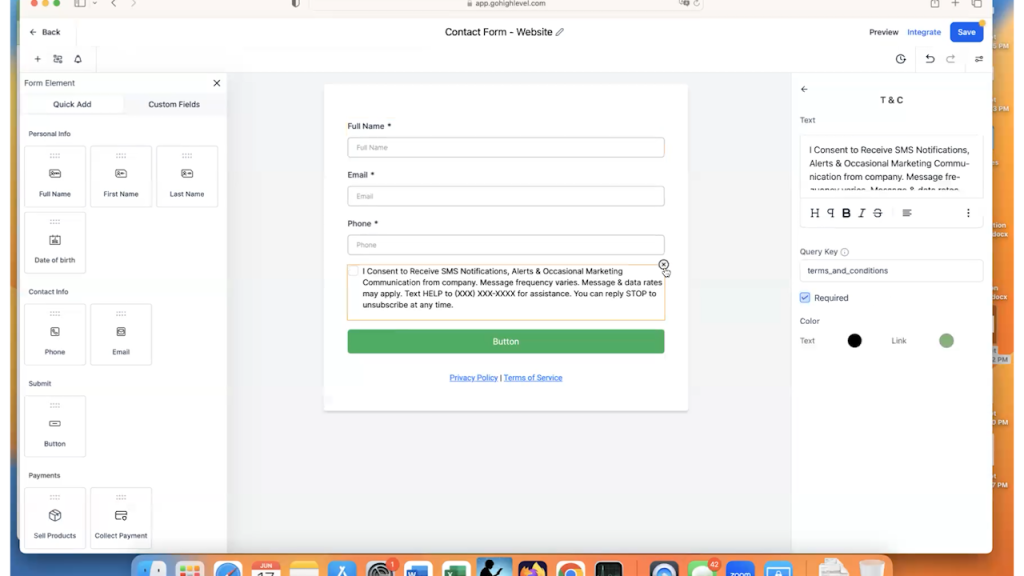
In this example, we are not going to require texts. We just are going to have them enter their phone number, so we can get in touch with them as a prospect. Therefore, we will get rid of the SMS permissions field as well by clicking on the “x” again for this field.

Custom Fields in GoHighLevel

In our example, we want to allow people to write a message when they submit the contact form. Because we are using a sample law firm website, we are going to ask for some information about their case.  

To do this, we need to create a Custom Field in GoHighLevel.

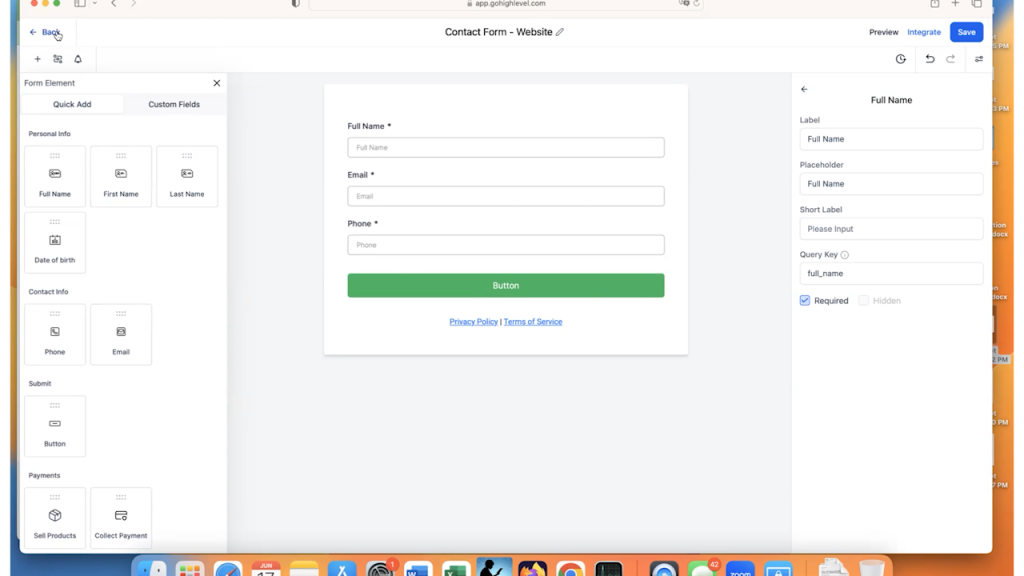
This will require you to save the form and click on the “Back” button in the upper left-hand corner so you can see the main left-hand menu again.

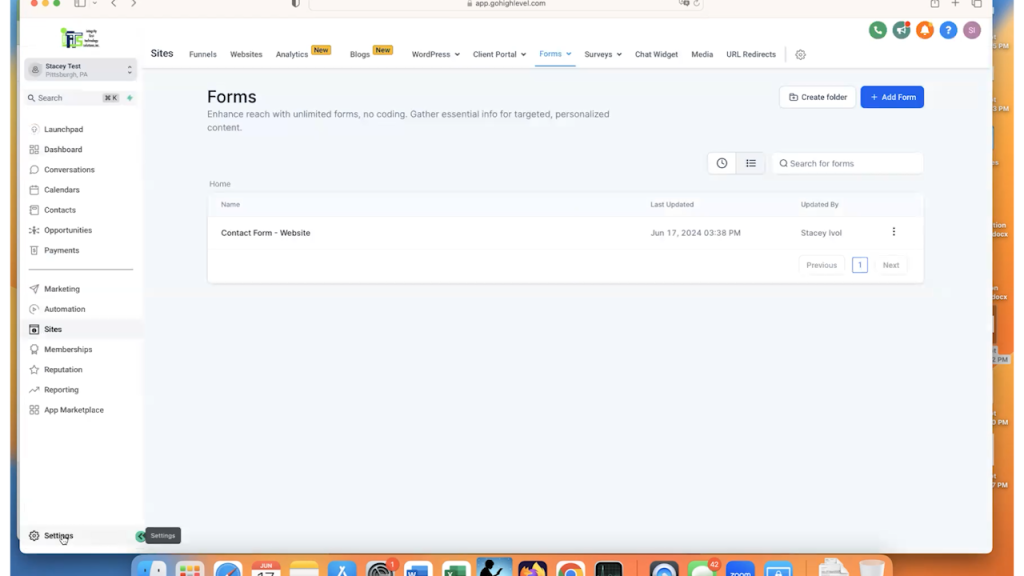
Then, click on “Settings”, which is the last choice of the main menu on the left.

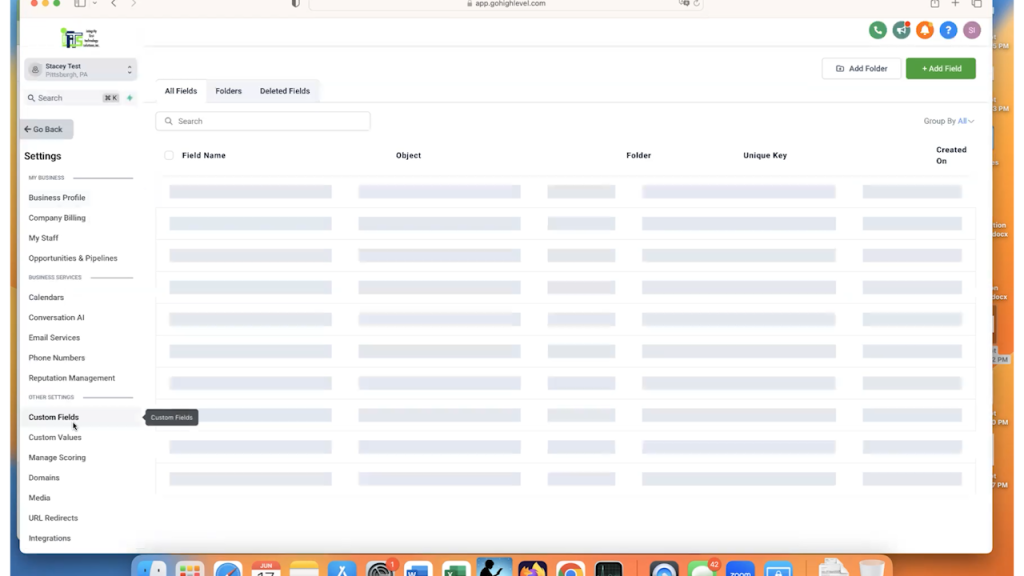
Then, once you are in the “Settings” menu, click on “Custom Fields.”

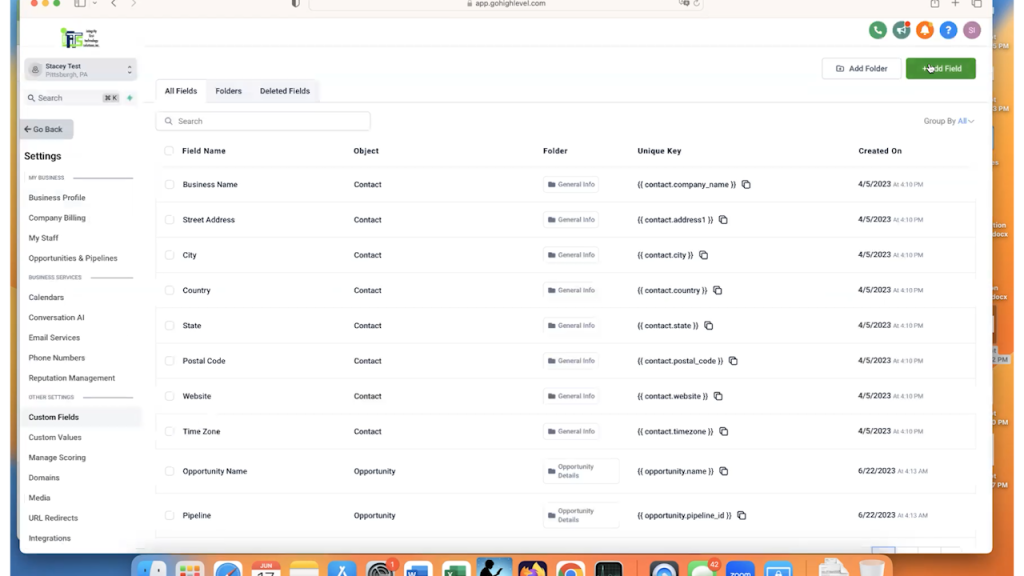
Click on “Add Field” in the upper right-hand corner.

As you can see, you can create almost any type of field, such as dates, times, text etc.

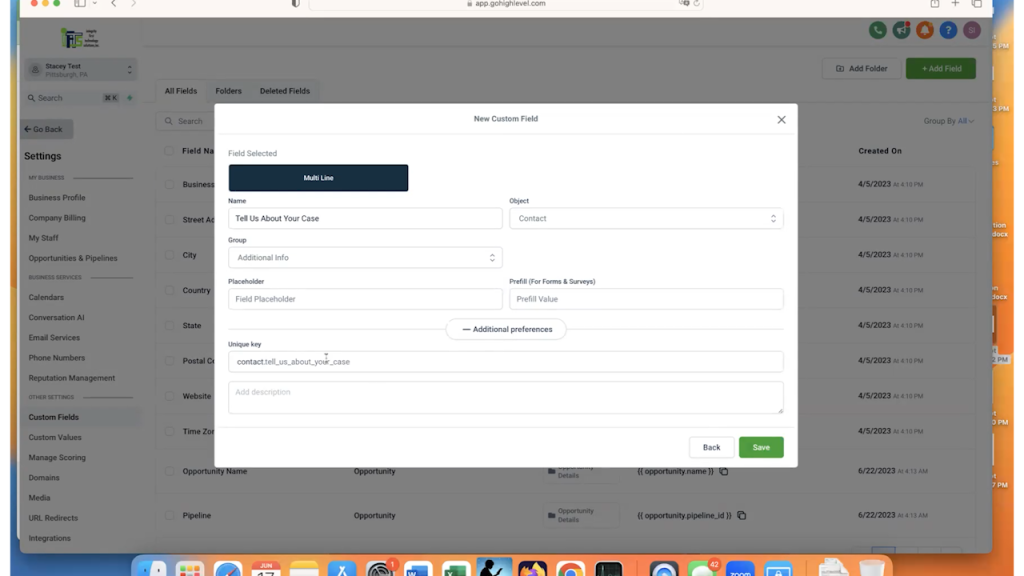
In this example, we are going to choose “Multi-Line.”

You will name your custom field, which is the “Label” of the field on the form.  You can also select a default value if you would like for the “Placeholder” field.

In the “Group” field, you will select where you want your custom field to show in the Contact’s profile. I almost always select “Additional Info” so my fields are separated from the default GoHighLevel fields.

Finally, if you expand the “Additional preferences” section, you can see what GoHighLevel is going to name the field within its unique keys. You can add a description of the field here, as well.

For this example, we named the field “Tell Us About Your Case” and selected “Additional Info” for the Group.

Click Save and your custom GoHighLevel field is live!

Click on “Go Back” to return to the “Form Builder” section and click on your form to open it again.

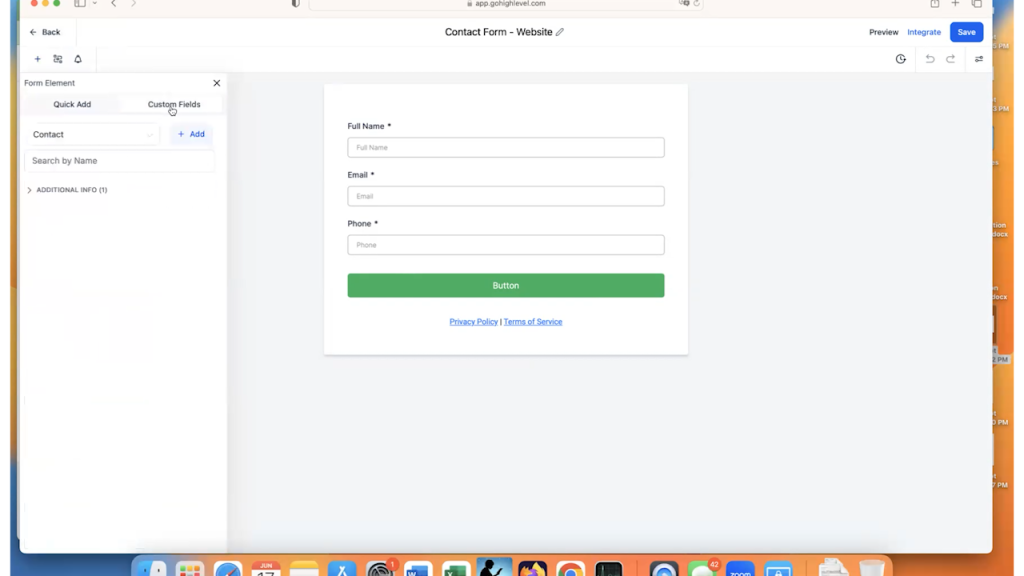
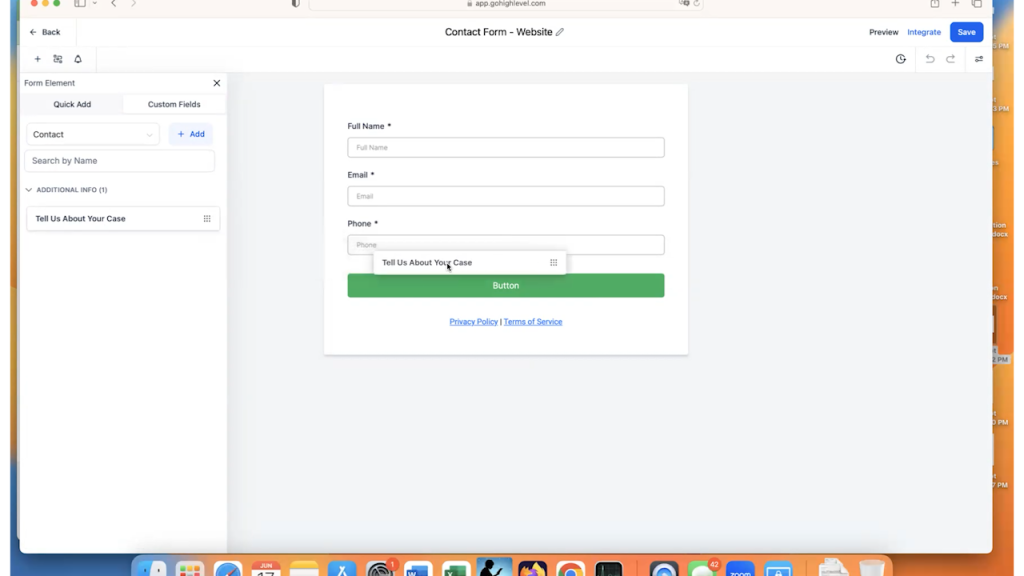
Now when you look at the available Form Elements, click on the “Custom Fields” tab to see your new field available to add.

Drag that element onto the form.

So now we have the full name, the email, the phone number, and tell us about your case. 

Do you want to add additional text to the GoHighLevel form? 

Maybe add a heading at the top?

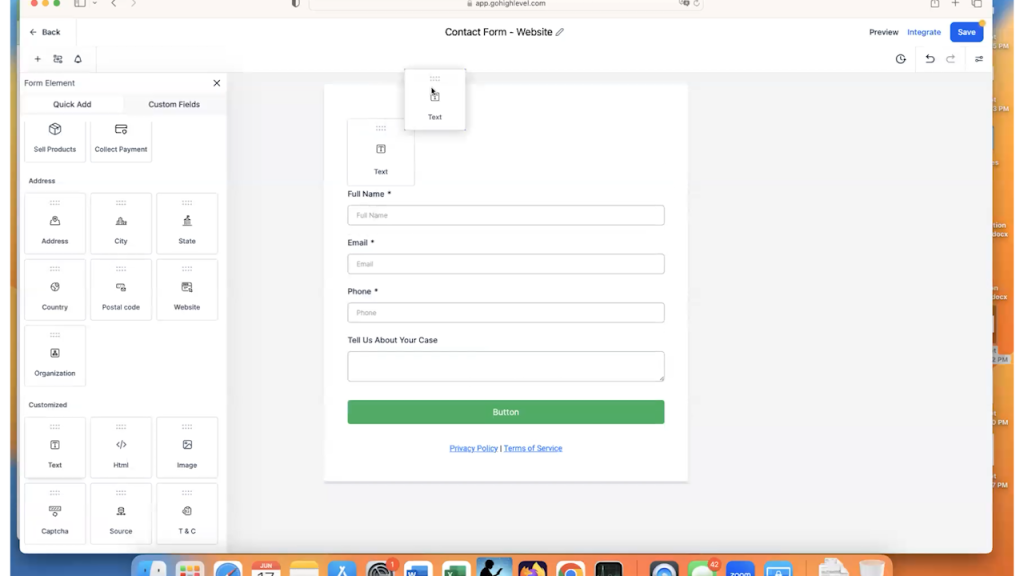
Go back to the form elements and scroll to the bottom.  This is where the static elements are, like text and images.

For this example, let’s add a title to the form.

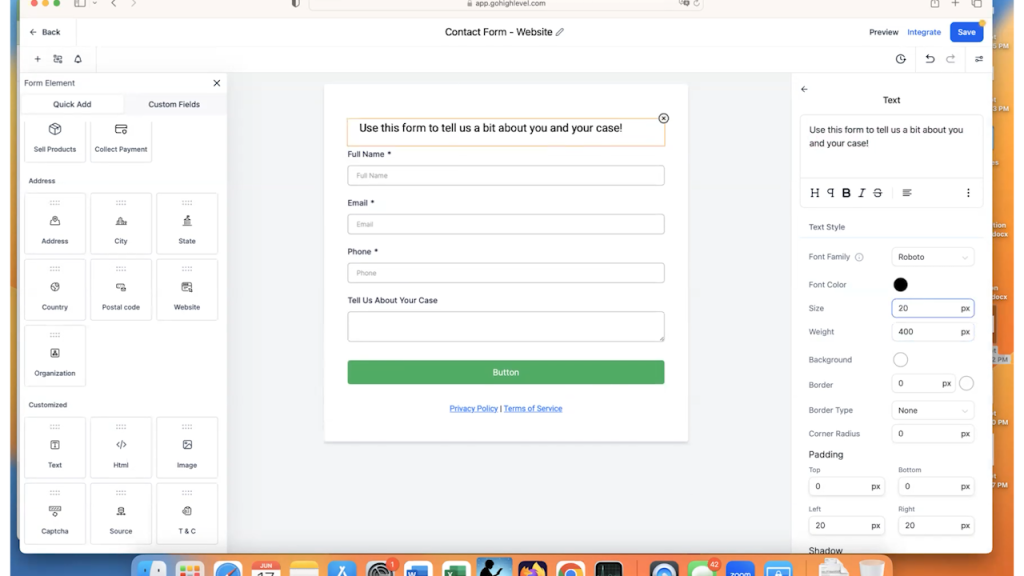
Grab the “Text” element and drag it to the top of the form.

You can add the title text in the settings on the right.

You can also change the font, font weight, color etc. using these settings as well.

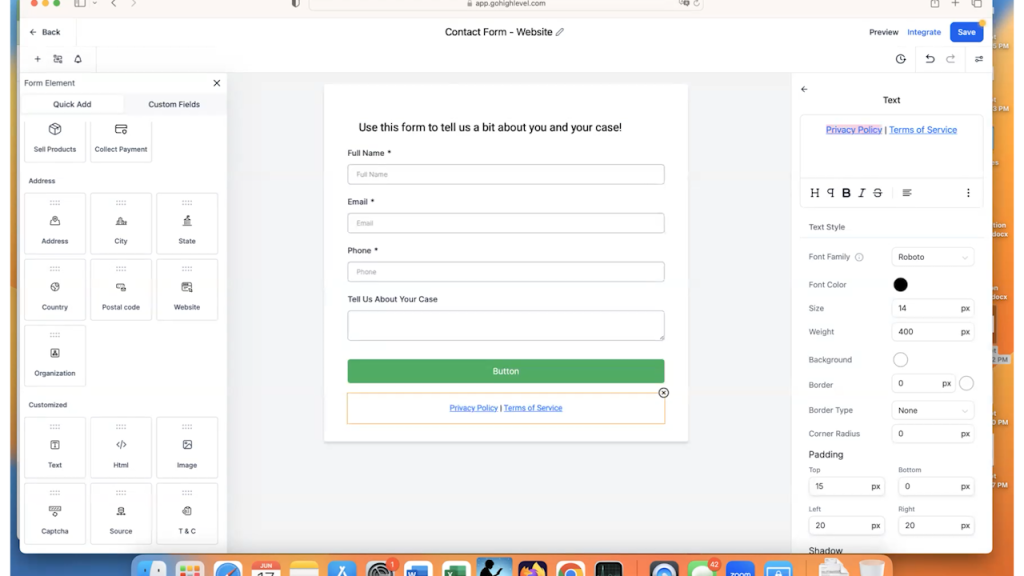
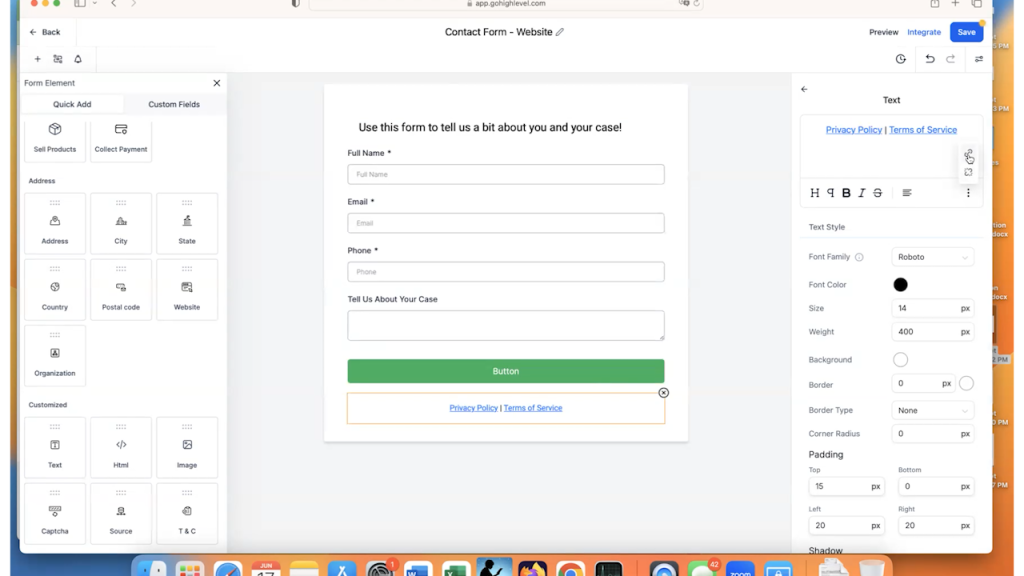
At the bottom of the form, you can see that they by default provide you with a placeholder to put links to your “Privacy Policy” and your “Terms of Service.” You can delete the whole element if you would like to be clicking on that “x” to the right when you hover over the element.

However, because it is a form where people are entering data, for legal reasons, it is a GREAT idea to leave that text there and link to the policies that your website has.

To create that link, make sure that you have the text element selected on the form and highlight the “Privacy Policy” text.  

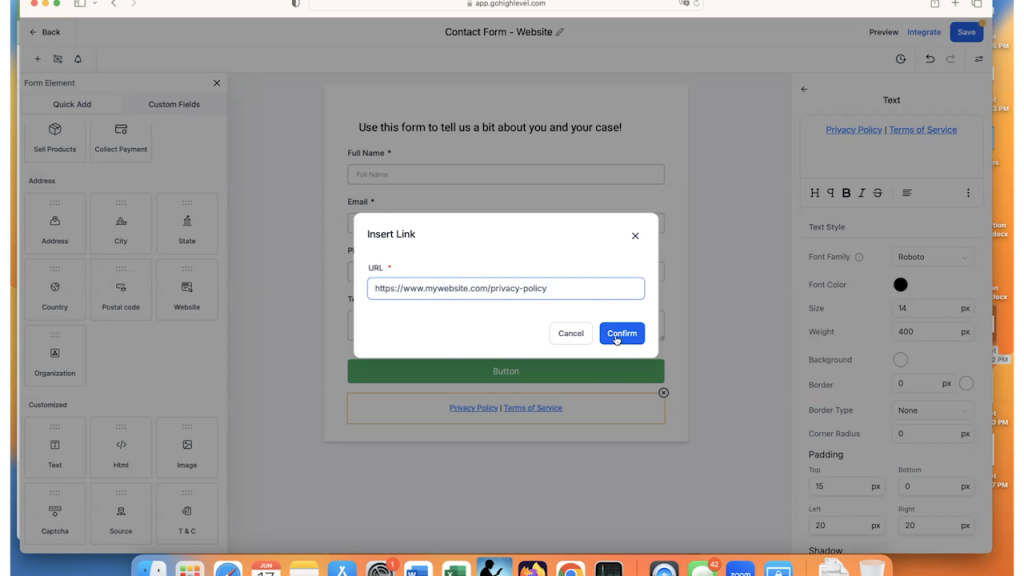
Once it’s highlighted, click on the 3 vertical dots symbol to get more options for the menu and select the symbol for the hyperlink.

This will trigger a pop-up where you will add the link to your website’s privacy policy and click on “Confirm.”

Once you click “Confirm,” you have an active URL.

Repeat this process and add the link to the terms of service. Be sure to click “Save” so all of your hard work is saved!

Now that the form is basically completed, let’s talk about the button, that bright shiny button that you want people to click!

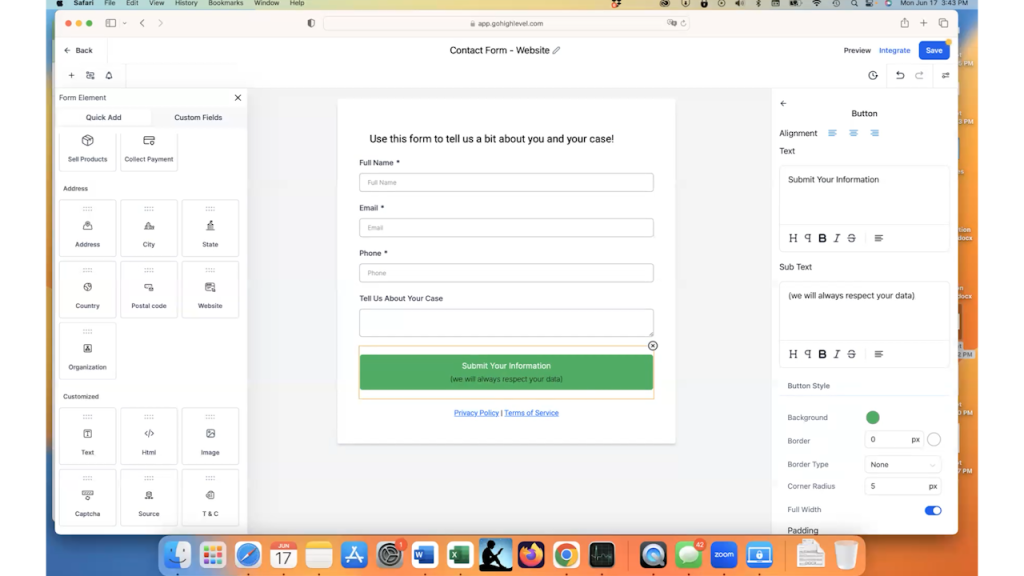
So, you need to click on the button to bring up all of the settings on the right.

First, instead of the word “Button,” change the text to be something that will encourage users to submit their data.

In this example, we are just going to put “Submit Your information.”

In addition, there is an option to add “Sub Text,” which can explain the button’s use a bit more. It’s fairly popular to add a small message about not selling the data that is being submitted, so that is what we will change that text to.

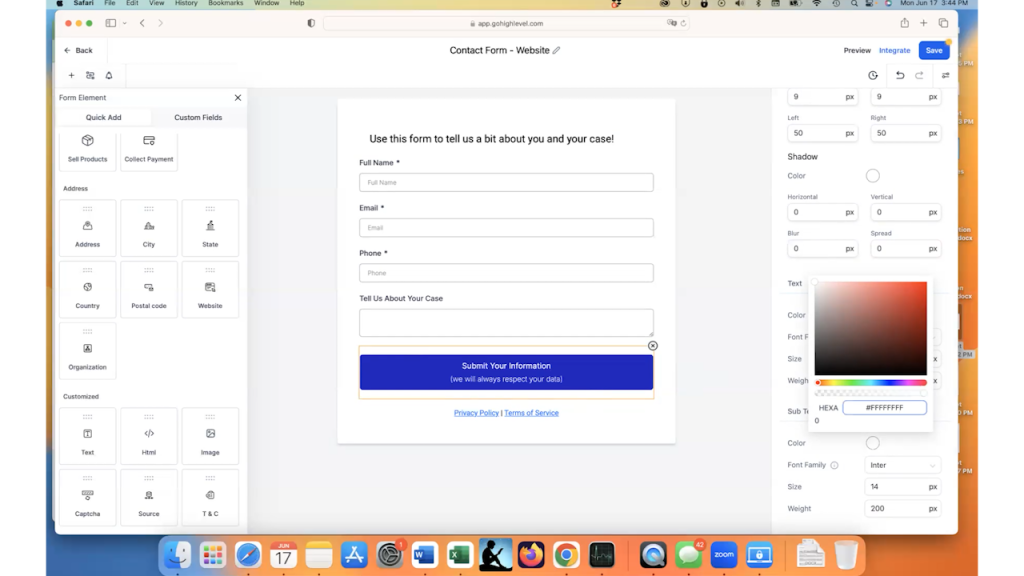
Once you have your  text finalized, you will want to change the color of the button and the text so that it goes along with your branding.

Scroll down through the settings and you’ll find the ability to change the background, the text color and the sub text color.

In this example, we are going to change the button to be blue and all of the text to be white.

We now have a great looking button that will go within our website. Click Save to finish that part.

Once you have the form fields set up and the button the way you want it, it’s time to complete the general form information to finish the form up.

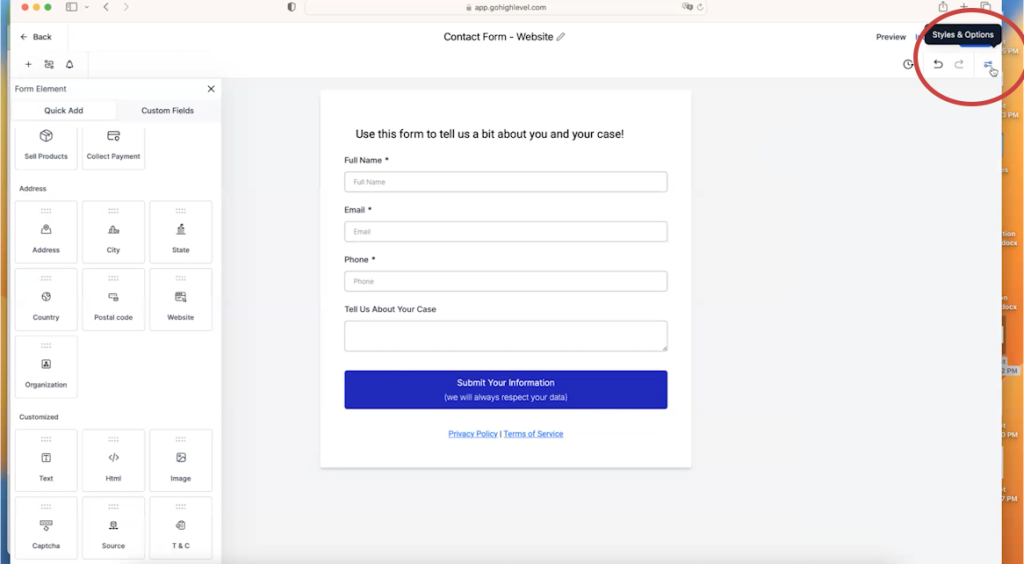
To get to this section called “Styles and Options,” click on the “Styles and Options” icon, which looks like 2 toggles in the upper-right corner of the screen.

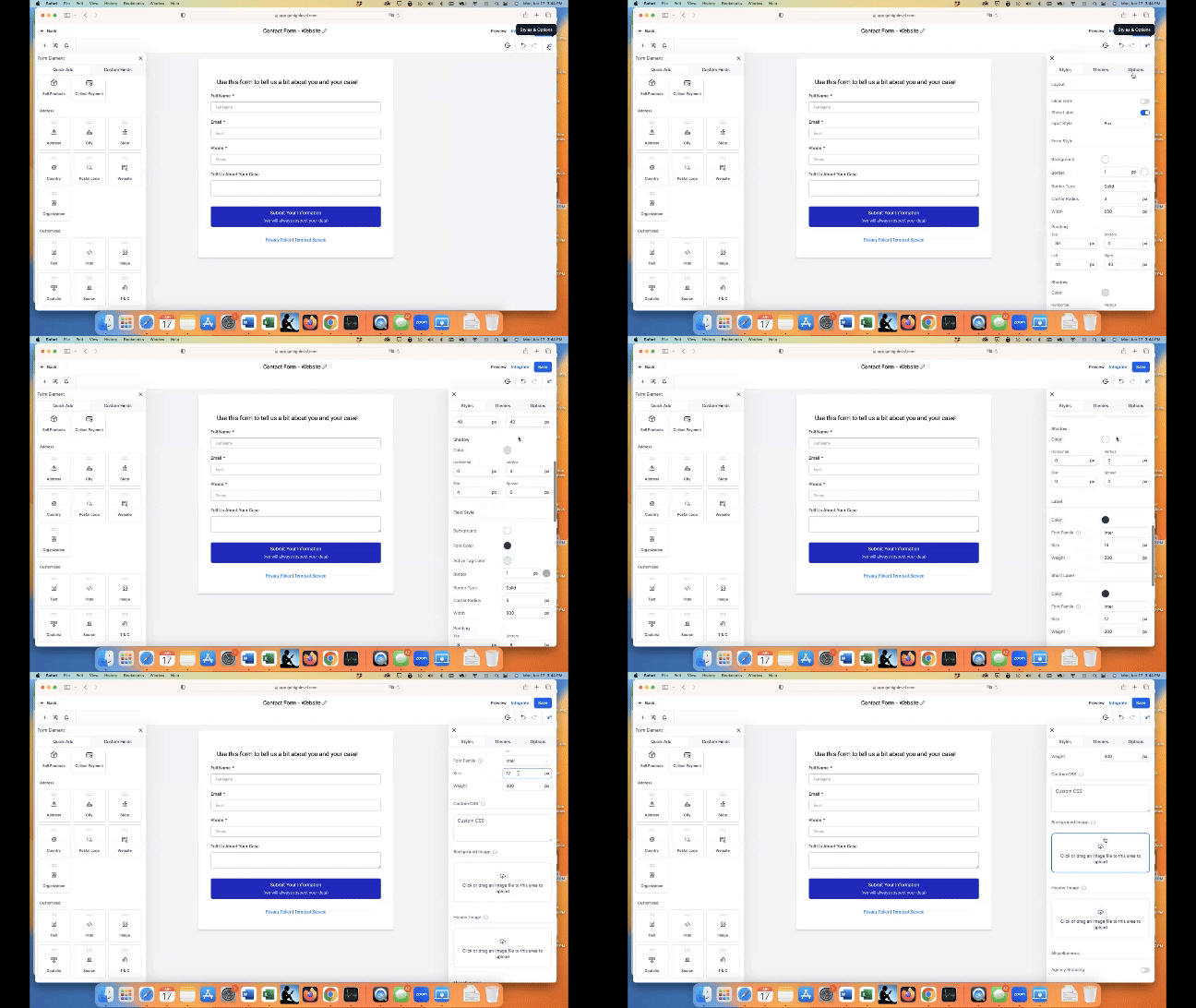
If you scroll through everything that is available to you under “Styles,” there are a lot of changes you can make.

You can toggle agency branding on and off, you add a background image, you can add a header image, you can add custom CSS, etc. Basically, you can change the look of the form to be anything that you want it to be.

These settings are a bit more complicated and will be gone over more thoroughly in an upcoming video.  In this example, we are going to leave those alone and go to the “Options” tab.

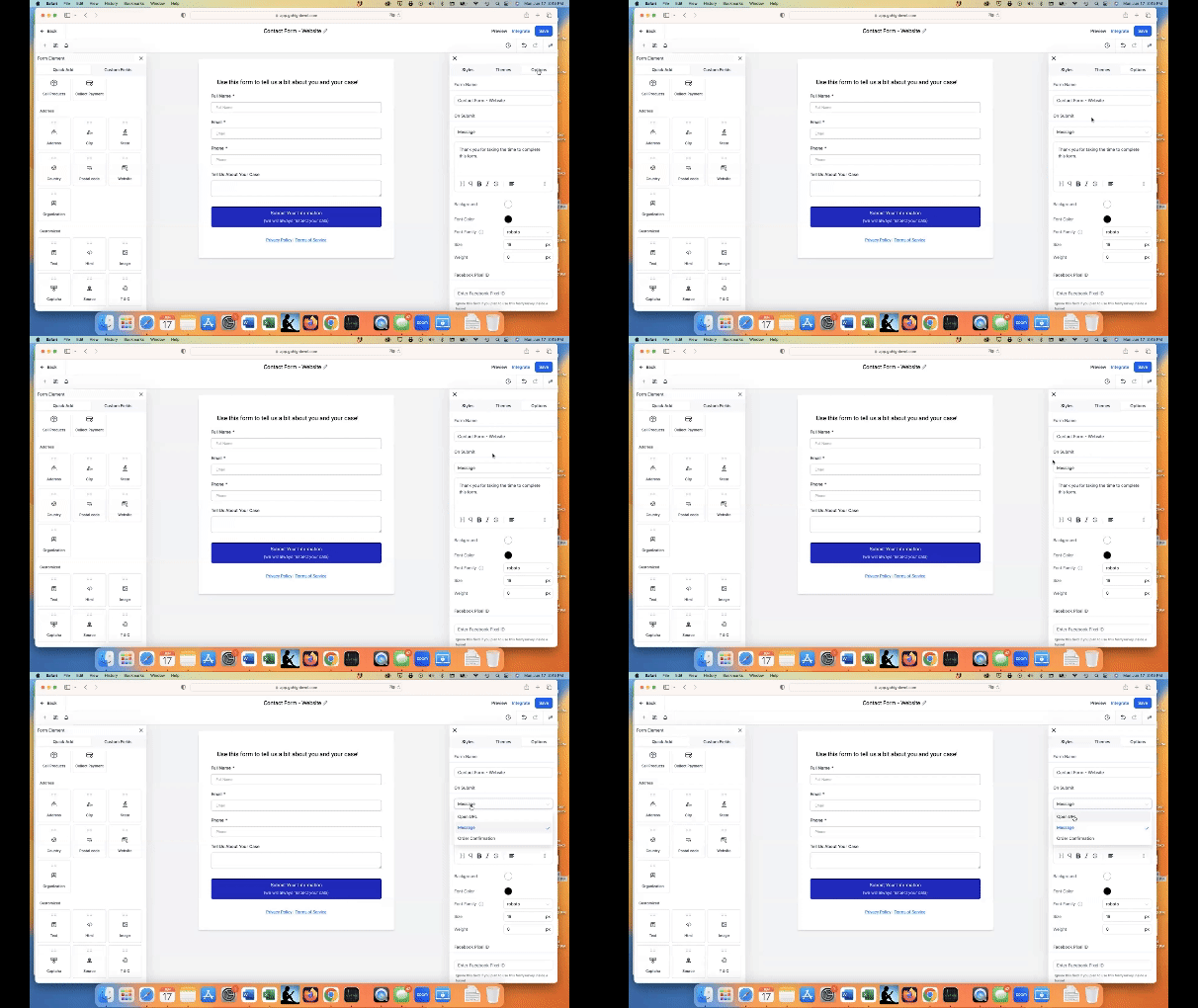
Whenever a form is submitted, there are two main options (for this example) that can happen. The form can show a message that the form was submitted successfully, or the form can take you to a different URL.

So if you click on “Open URL,” you can actually put a whole new different page on here. A lot of people will choose this option if they are tracking conversions using Google Ads or Facebook Ads.  

Since this is a simple example, we are just going to have a success message.

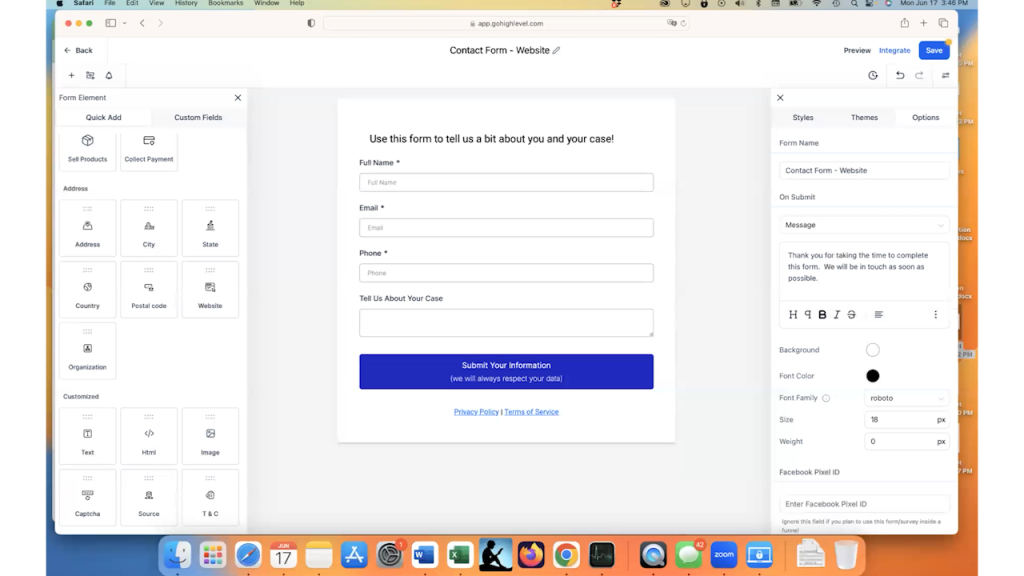
The default success message that the form gives you is “Thank you for taking the time to complete this form.”

This message is fine, but I normally like to add a small bit at the end to customize it to my business tone…so, I added, “We will be in touch as soon as possible.” 

I like to give people a timeline for their submissions. If you want to add a line like this, add a timeline that you are comfortable with.  Most service-based businesses will include a message about being in touch within the next 5-15 minutes.

One more thing that is unique to GoHighLevel – “Sticky Contact.”

If you scroll the whole way to the bottom of the “Options” section, you’ll see a toggle for “Sticky Contact” turned off by default. If you turn this on, it will auto-complete the forms for the prospect if they have ever submitted anything else on your website before.

While this speeds up the process a little bit, we generally recommend keeping this turned off for a one-step form to our clients. If there are two steps, two sets of forms to complete, then we recommend turning this on.

For this example, we are leaving it turned off.

Don’t forget to click “Save” when you have completed all of the final steps for the form!

To summarize the entire form, a prospect will fill in their name, email, phone number and hopefully a little bit of information about their case. They will press the submit button and they will see a message thanking them and letting them know that someone will be in touch soon.

Let’s move on to part two, which is adding this form to the website. 

Step 2 - How to Add A GoHighLevel Form To A Website

Adding our new form to a GoHighLevel website is fairly straightforward.

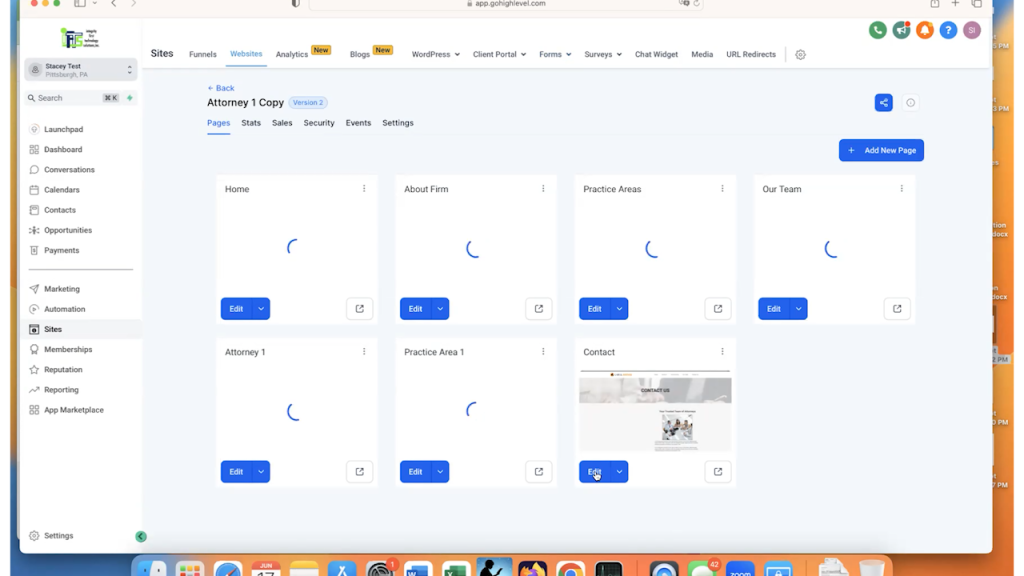
In this example, I will be adding the form to the “Contact” page of a sample law firm website.

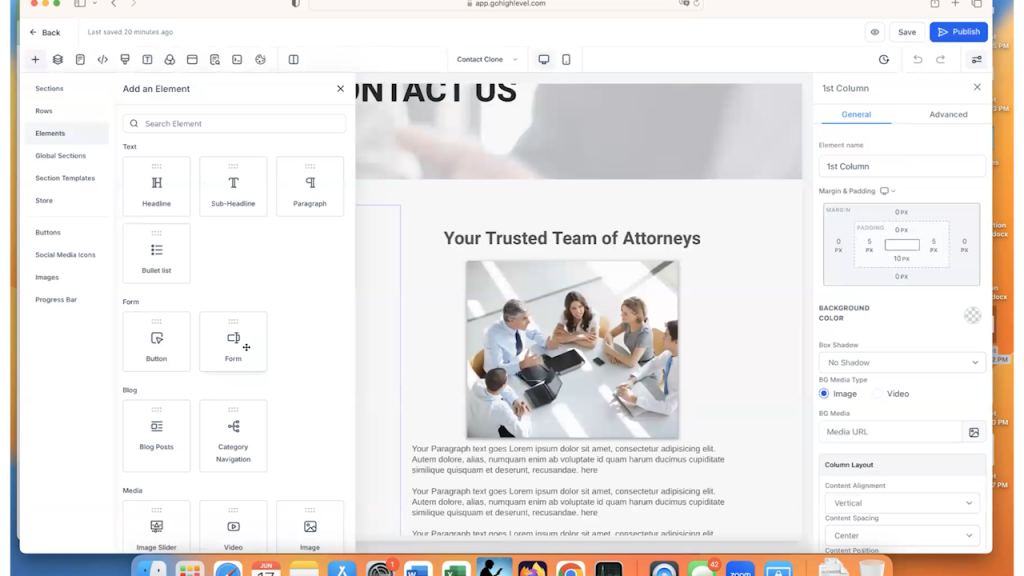
Go to your GoHighLevel website page that you want to add the form to and click on “Edit.”

Once we are inside the contact page, you will want to decide where you want to add the form.

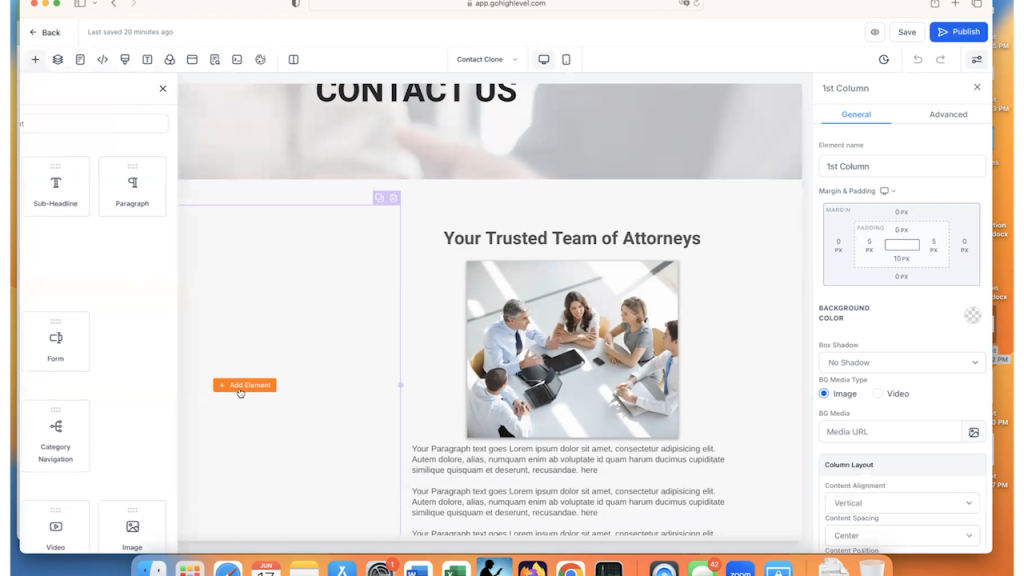
Click on “Add Element” where you want the form to be located.

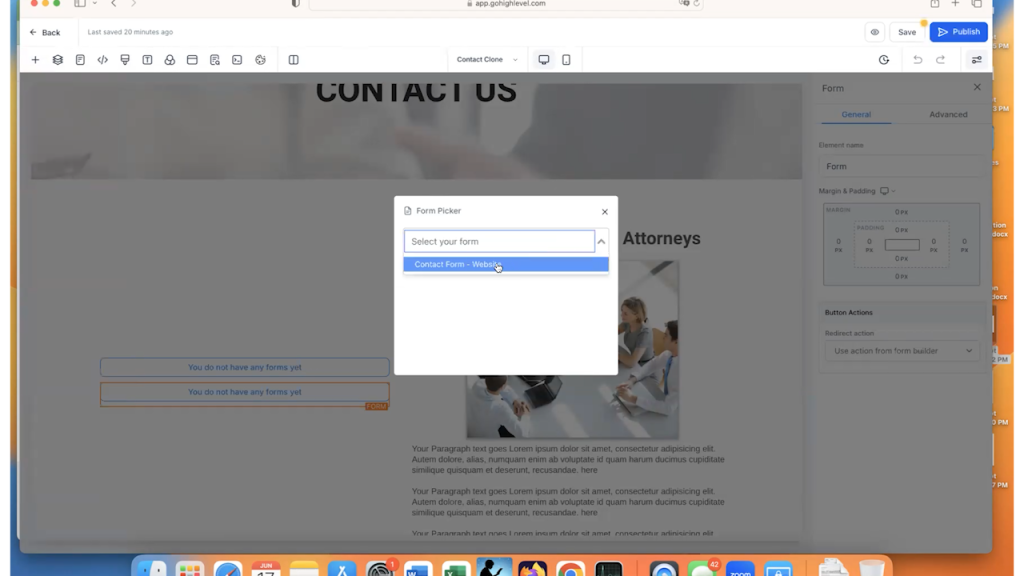
Then, select the “Form” element.

Once you click on the “Form” element, this will bring up a pop-up that has all of your available forms for the website.

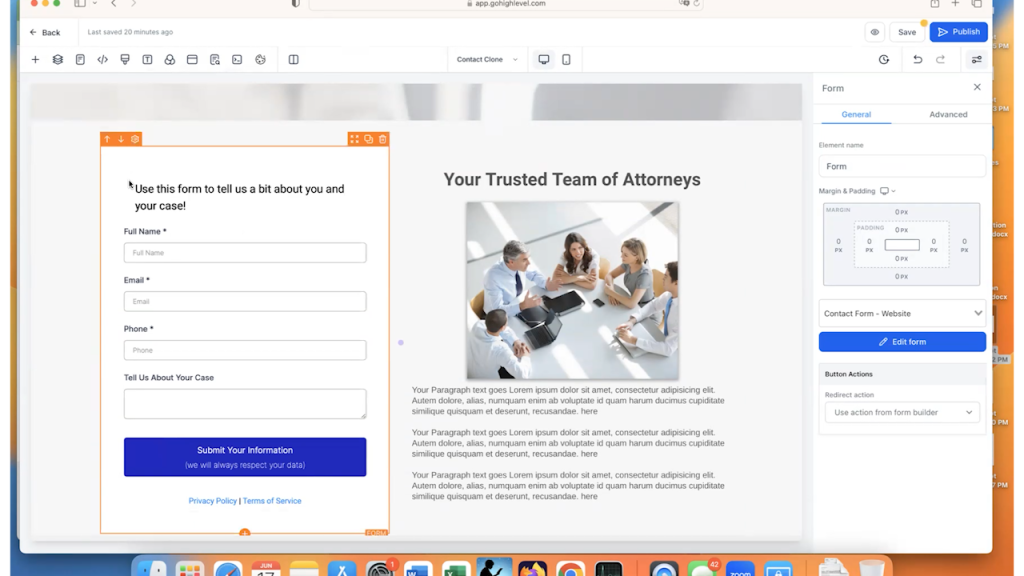
Select the form that you just created in Part 1 of this article.

Once the form is selected, the screen will refresh and you should see the form that you created within the webpage.

Click “Save” and your form is ready to go for your website.

So, that is a very quick and easy way to add a form to your website using GoHighLevel. 

What do you do if you have a website that is NOT in GoHighLevel?

This is fairly easy as well.

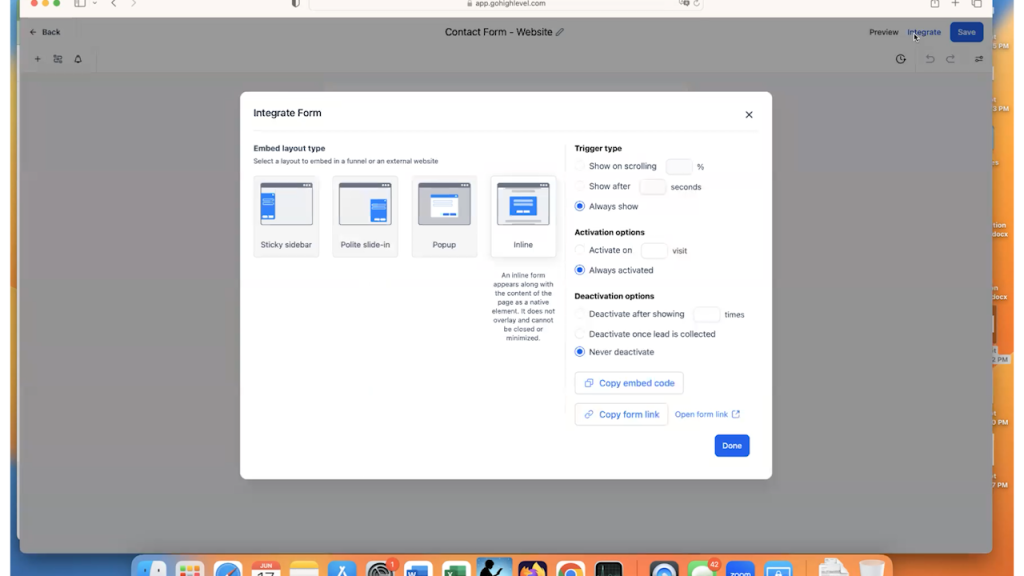
Go back to the form that you created in Part 1 and click on the “Integrate button.”

The “Integrate” button gives you a bunch of options for different things that you can do with the form.

In most cases, people want to embed the form on their website. This means that they are going to choose the “Inline” option, which is the default.

Then, click on the “Copy Embed Code” button.

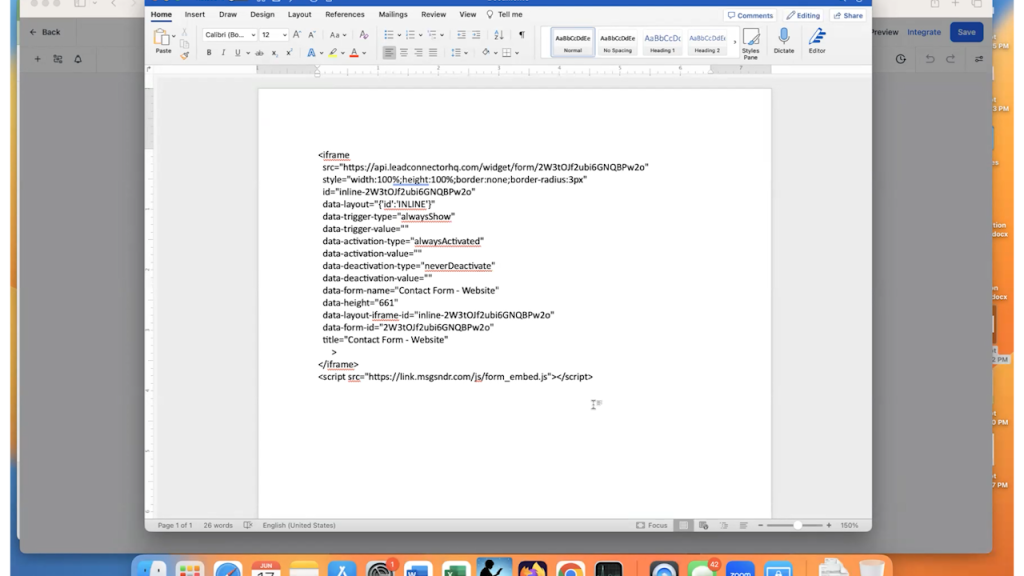
This button gives you all of the code needed to place your form on any website, no matter what that website is coded in. So, you can use WordPress, Wix, SquareSpace, Drupal etc.

Then, open the website editor where you want the form to be and add an HTML element to it. Once you can add code to the HTML editor, paste the embed code to your editor.

The code will look something like this:

Save the code and you should have a form that looks exactly like the one that you created in GoHighLevel embedded on your website.

Check out Part 2 of this article, which will create the automation set that alerts you to the submission and sends the prospect a set of emails!